

For years, QR codes were purely functional: black-and-white pixelated squares that didn't do any favors for your brand's carefully curated aesthetics. They looked like something generated by an industrial machine rather than a design agency. But as scanning has become a daily habit for millions, the design of the code itself has become a crucial touchpoint for marketing.
If you put a generic black-and-white code on a beautifully designed poster or highly-designed product packaging, it looks like an afterthought. By customizing your QR code with your brand colors and seamlessly integrating your logo into the center, you actively build trust, increase scan rates, and maintain vital visual consistency across your marketing channels.
Why Custom QR Codes Work Better
Data consistently shows that fully branded QR codes experience significantly higher scan rates than generic ones. When a user sees a familiar logo nestled in the center of the code, it immediately signals safety. It answers a subconscious hesitation: "Where does this link go, and is it a trusted source?" When people trust the design, they pull out their phones much faster.
The Step-by-Step Guide to the QR Design Studio
Using QR Pulse, you don't need to employ a senior graphic designer to build incredible codes. All of these features are completely free to use directly on your device, ensuring maximum privacy since you aren't uploading your assets to a cloud server.
Step 1: Choose Your Destination
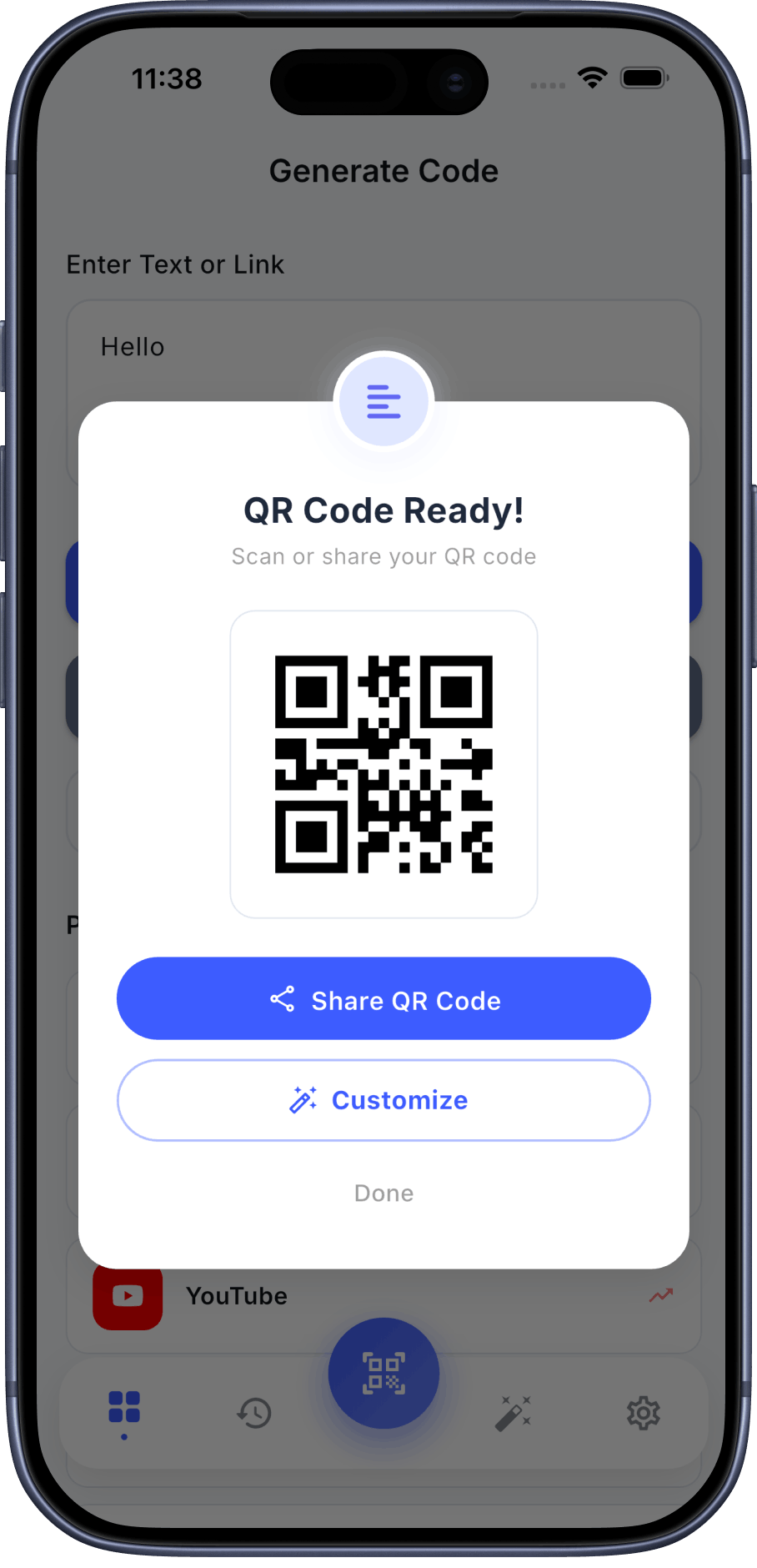
First, decide what the QR code will do. QR Pulse supports dozens of smart formats ranging from simple website URLs, connecting instantly to Wi-Fi networks, adding a VCard to contacts, or opening a specific map location on Google Maps or Apple Maps.
Step 2: Apply Your Brand Colors
Ditch the stark black and white. Head into the 'Design Studio' tab and select your brand's exact primary hex color for the foreground. You can even choose a contrasting color for the background. The only rule? Just ensure there is enough contrast between the two colors so smartphone cameras can easily detect the data points.
Step 3: Upload Your Logo
This is the magic step. Tap the 'Logo' option and select a high-resolution PNG or JPEG of your company icon. The app will automatically calculate the error-correction thresholds (usually forcing a 30% error 'H' level), carefully placing your logo in the center without ever breaking the readability of the overall code. You don't have to guess if it will scan; the app ensures it does.
Step 4: Change the Pattern
Standard tiny squares are boring. You can alter the core data "pixels" to be rounded dots, smoothed shapes, or connected lines, giving the final image an incredibly modern, custom feel.
Upgrade Your Marketing Today
Experience the power of a full-fledged Design Studio right in your pocket. QR Pulse offers all custom design features completely free, allowing you to build and export high-resolution assets in seconds.


Frequently Asked Questions (FAQ)
Will changing the colors break the code?
Not as long as there is high contrast! The scanner looks for the difference between light and dark. A navy blue code on a white background scans perfectly; a yellow code on a white background will likely fail.
How large should the logo be?
A standard rule of thumb is that the logo should never exceed 30% of the total surface area of the QR code. QR Pulse calculates this automatically so you don't even have to worry about the physics of it.
Conclusion
A custom QR code is a tiny but highly visible reflection of your brand's quality. Don't settle for the default output when tools like QR Pulse make creating professional, highly scannable, securely branded codes completely effortless.